![Loopfront-1.svg]](https://knowledgebase.loopfront.com/hubfs/Loopfront-1.svg)
Completed orders on both the internal and external marketplace in Loopfront will generate savings in your organizations reports.
The various stages of orders are:
- Pending / Approval / Cancelled
- Processing
- Awaiting pickup / awaiting delivery
- Received
In this article you can read how the ordering works for both the person ordering ("buyer") and the person responsible for the marketplace listing ("seller")
Click on any of the sections in the overview below to jump to the section in this article: (relevant for users with admin or member role)
If you are a user with buyer/seller role, you can read more here about how the simplified marketplace flow works.
Approving or cancelling an order
You will be notified If any of your listings on the marketplace are ordered. You will get notifications in the platform and an order confirmation by email. (Read here about settings for notifications).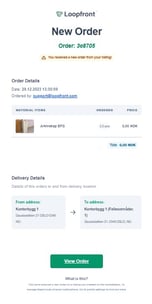
Tip: Order confirmations can be useful for any organisation that is using Loopfront for storage management and prefer to have an overview of orders. With the order confirmation you can easily be notified if some orders anything from your storage, which can be printed out and used to physically manage orders.
If you get an order confirmation by email, you can click on the "view order"-button to go to the order-page in Loopfront.
If you get notified in the platform, you will see a green dot on your inbox-icon in the top right. Click on "view" on the order notification in your inbox.
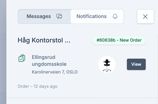
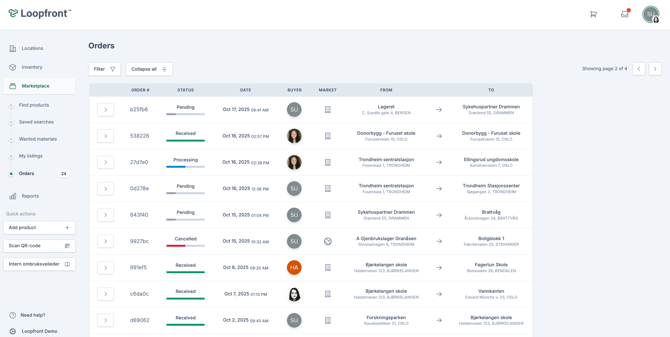
You will then be taken to the order page in Loopfront where you can see the pending order, with information about date, order number, who has ordered what and to where.
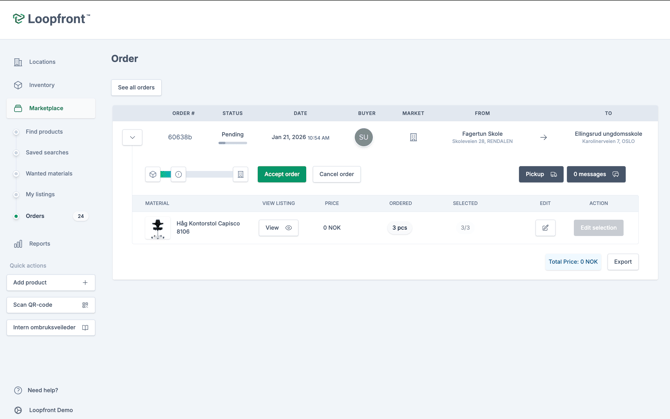
Pending is the first stage of an order, and the only time when an order can be cancelled.
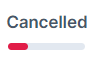
If an order gets cancelled for some reason during the pending stage, a history of the order process is still available in the overview table.
Note: An order can be cancelled by the user that placed it before the seller accepts it.
or cancelled by members and administrators up until the order reaches the satus "Awaiting delivery" or "Awaiting pickup".
Once cancelled, the ordered items return to being available on their listing on the marketplace.
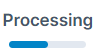
If an order gets accepted, it will change status to "Processing", and the buyer will then be notified of the accepted order.
Completing an order
After being confirmed, the seller or any admin or member in the organization can either change the status back to pending, cancel the order or mark it as ready.
Note: If items have individual QR codes or ID numbers, there will be a “Select items” button activated so that the seller may select which items to pack and ship / or make ready for pickup. Once the ordered number of items has been selected, the “Mark as sent” button is activated.
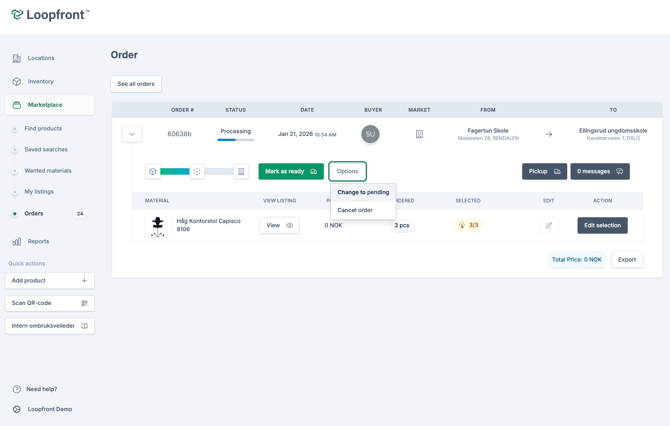
Once the order has been marked as ready, it will go to the next stage: either "Awaiting pickup" or "awaiting delivery" depending on the listing. The seller then confirms the pickup or delivery by clicking on the confirmation button.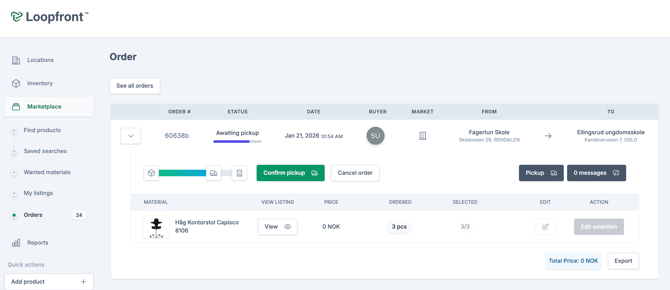
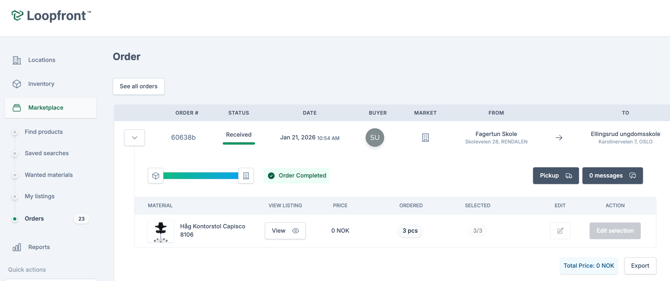
When the order is completed, the status is updated to "Recieved". This completes the order flow and digitally updates the location of the ordered objects, as well as the savings in your organizations reports.
Order messages - communicate with buyer or seller
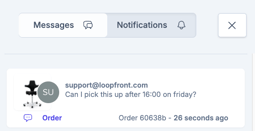
All orders have a message button to the left where the seller and buyer can communicate about the order directly in the platform. Here you can send and respond to messages about the objects that have been ordered, or details about pickup / delivery times etc.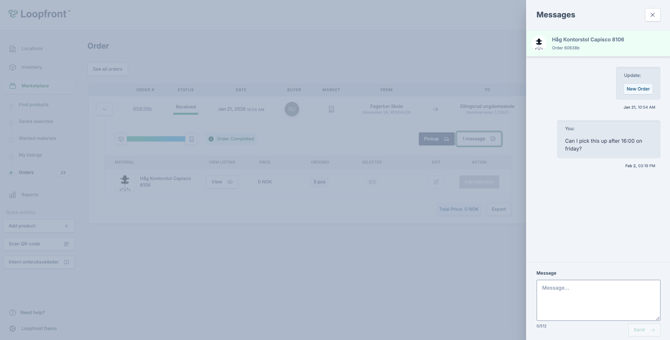
You will be notified of order messages by notifications in the platform and / or email. (Read here about settings for notifications).
Once there are any new order messages, you will see the total number of messages being updated on the order on the order page, and you can also go to your order messages via the inbox in the top right corner: