![Loopfront-1.svg]](https://knowledgebase.loopfront.com/hubfs/Loopfront-1.svg)
You can find your listings under Marketplace in the main menu to the left by clicking on "my listings". Here you will see an overview of your listings.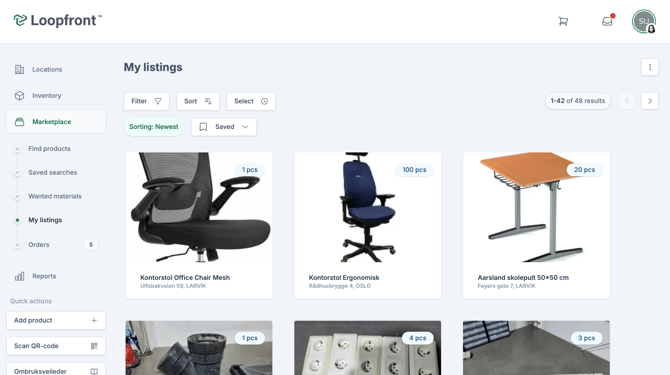
Click on any of the titles below to jump to the specific section in this article, that you want to learn more about:
How to edit or delete multiple listings
Select multiple listings by clicking on the "select (+)" button above, click on the listings you want to select and next select action.
Note: You cannot edit or remove listings that have any active orders. Cancel or complete any orders before removing or editing your listings.
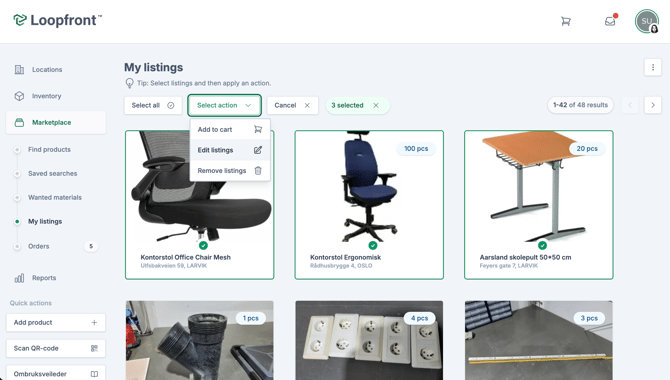
If you select action "Edit listings", you can edit the following details for multiple listings:
- Which marketplace your listings should be visible on (Note that access to external marketplace is defined by your admin the organization settings)
- Availability date: You can update the availability-date to begin sooner or change the end date if the listings should be available on the marketplace longer. You can let the End-date stay blank (dd/mm/yyyy) if you want the listings to be available indefinitely.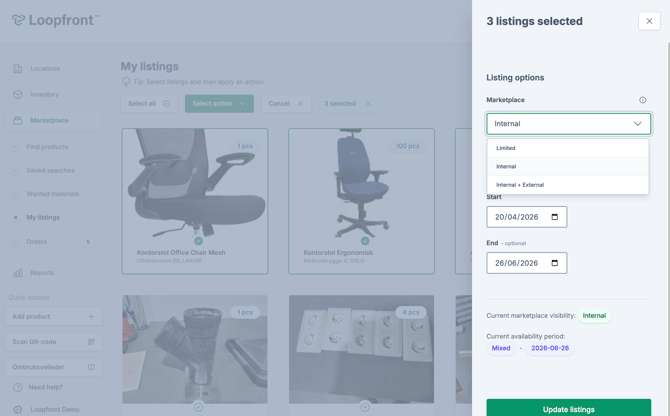
How to edit details for a specific listing
If you only want to delete or edit details for a specific listing, click on the listing in the overview. By clicking on the three dots in the top right corner of your listings you can chose either "edit details", "Add objects", "Remove objects" or "Remove listing".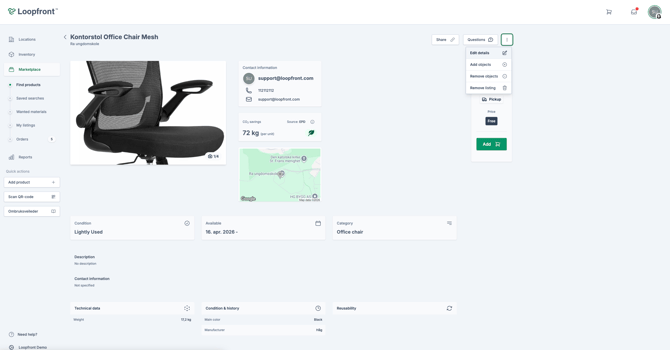
When clicking on "Edit details" you will be able to update Which marketplace your listings should be visible on (Note that access to external marketplace is defined by your admin the organization settings) and update availability date: You can update the availability-date to begin sooner or change the end date if the listings should be available on the marketplace longer. You can let the End-date stay blank (dd/mm/yyyy) if you want the listings to be available indefinitely. 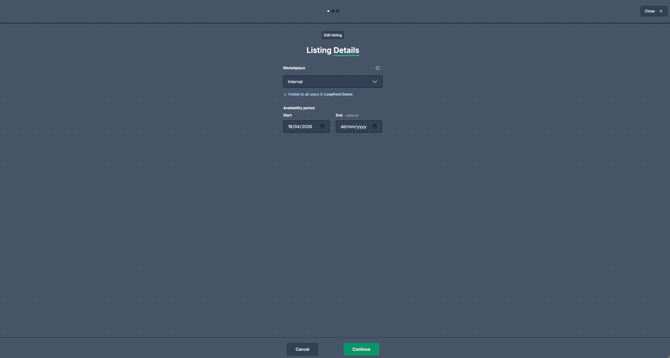
By clicking on "continue", you can now update the logistics, whether the ordered objects should be picked up or could be delivered, with information about adress and other relevant information.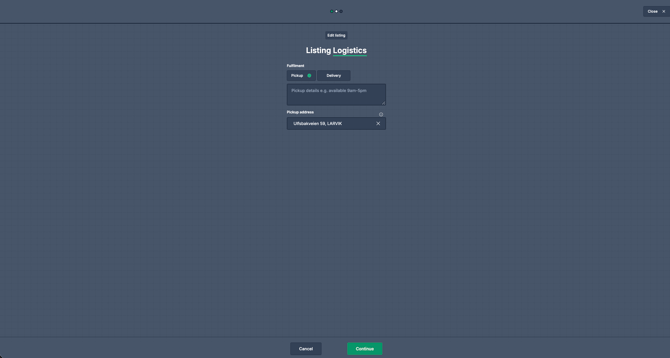
By clicking on "continue" you can finally update the pricing of the listings, either "free", set a "fixed price" or chose a "% price" based on the condition of the objects.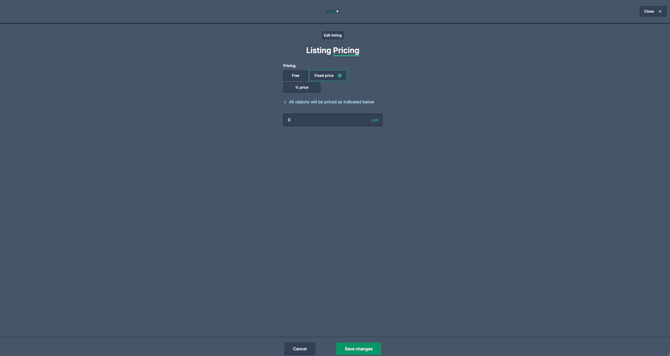
When clicking on "Save changes", you marketplace listing will be updated.
How to add more objects to an existing listing
Note: This functionality is only available for admin and member-users that have access to the organizations inventory.
Go to the listing you want to add more objects to, click on the three dots in the top right corner and click on "Add objects".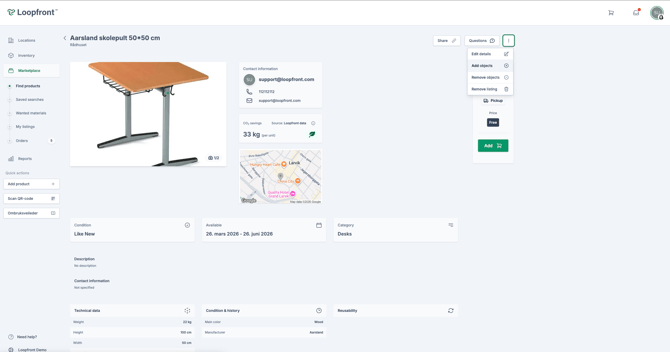
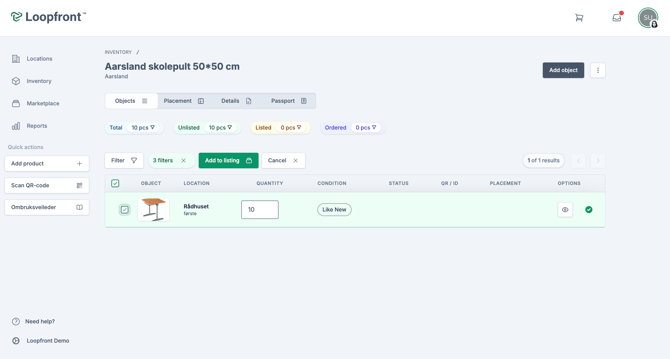
Here you will see an overview of all available objects in on the same location in inventory.
Note: You can only add objects from the same location to your existing marketplace listing, as each marketplace listing can only display one location at a time.
Select the line of objects you want to add to your listing, adjust the quantity in the box displaying quantity, and click on "Add listing" to add your chosen quantity of objects to the existing listing on the marketplace.
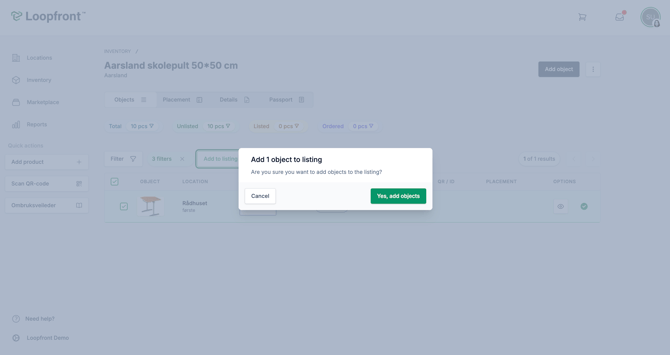
Finally, confirm adding your chosen quantity of objects to update the available amount on your marketplace listing.
How to remove objects from an existing listing
Note: This functionality is only available for admin and member-users that have access to the organizations inventory.
Go the listing you want to remove objects from, click on the three dots in the top right corner and select "Remove objects".
Here you will see an overview of the objects in your listing. Select on the line of objects you want to remove from your listing, adjust the quantity in the box displaying quantity, and click on "Remove from listing " to remove your chosen quantity of objects from the existing listing on the marketplace.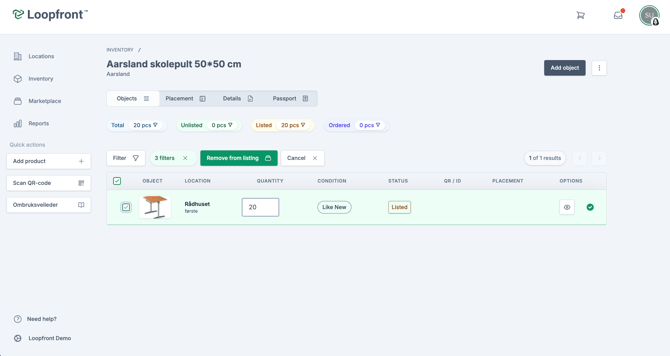
Finally, confirm removing your chosen quantity of objects to update the available amount on your marketplace listing.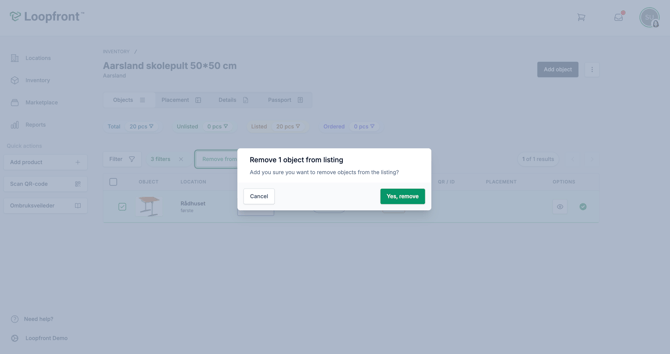
How to delete a specific listing
If you want to delete a listing entirely, you can click on the three dots in the top right corner and select "Remove listing".
Marketplace listings created by admins or members: Can be deleted from the marketplace, while the registered objects will still remain in your organizations inventory and can be listed on the marketplace later.
Marketplace listings created by buyer/seller-users: will also remove the registered objects from inventory if the listings are deleted.
Note: You cannot edit or remove listings that have any active orders. Cancel or complete any orders before removing or editing your listings.
Click on "yes remove" to complete the deletion of the marketplace listing.