![Loopfront-1.svg]](https://knowledgebase.loopfront.com/hubfs/Loopfront-1.svg)
The QR-functionality in Loopfront allows you to link the digital object to the physical by attaching stickers with individual QR-codes to your physical objects, and connecting them with the digital object registered in Loopfront.
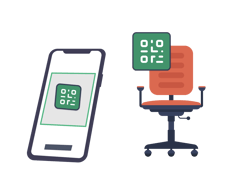 When scanning the QR code attached to a physical object with the QR-scanner in Loopfront, you will quickly find the digital object in Loopfront. The Loopfront platform can only read QR codes that have been generated specifically for our database.
Read more here about the benefits of using QR-codes,
how to order or print QR-stickers yourself.
You can connect QR-codes to objects during surveying, or to existing objects in inventory. Click on any of the titles below to jump to the section in this article:
How to connect QR-codes during surveying
You can attach QR-codes while surveying products and objects with your phone:
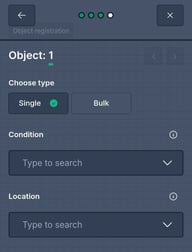
When you have surveyed the product information, you next survey the object(s). Here you add the amount and information about the specific object(s), including individual QR-codes.
1) You have to register the object(s) as single and not bulk, when attaching individual QR-codes.
2) Add the other information about the object, such as condition, location etc...
3) Attach the QR-sticker to the physical object you want to survey
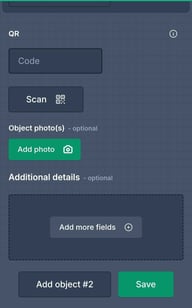
4) Connect the QR-code to the digital object, either by writing in the code in the bottom of the sticker manually, or by scanning.
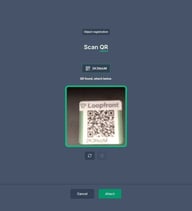
5) Use the camera on your phone to scan the QR-code, make sure to center the QR-code within the frame.
6) When the code has been scanned and found, the frame becomes green and a text will appear confirming that the QR-code has been found. To attach the code, click on "attach".
7) You will then be taken back to the object surveying form, where you see that the code has been entered. If you want to add more objects with individual QR-codes, click on "Add object #2" and repeat the process until you have connected QR-codes to all the objects.
 8) When you have connected QR-codes to all the objects, click on "save" to complete the surveying.
9) You can now see the QR-codes connected to the object(s) in inventory, and when the QR-codes are scanned later, you will easily find back to the digital object.
How to connect a QR-code to an object in inventory
You can also connect QR-codes to objects that have already been registered in your inventory.
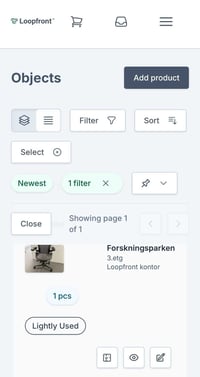 1. Find the object(s) you want to attach QR-codes to in the inventory. Either by clicking on the product where you will see the list of all the objects of the same product, or search in the objects-view in inventory where you see all objects of different types of products.
Tip: You can filter the inventory by objects that miss information, such as QR-codes.
2. Attach the QR-sticker(s) to the physical object you want to mark with QR-codes.
3. Connect the QR-code to the digital object, either by:
a) Clicking on the edit button, where you have the option to edit / enter a new QR-code.
b) Select multiple objects: "select (+) button", and action: Attach QR
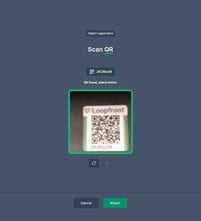
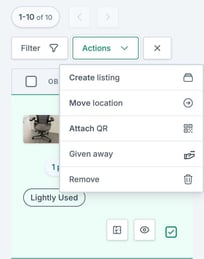 4. Connect the QR-code to the digital object, either by writing in the code in the bottom of the sticker manually, or by scanning.
5) Use the camera on your phone to scan the QR-code, make sure to center the QR-code within the frame.
6) When the code has been scanned and found, the frame becomes green and a text will appear confirming that the QR-code has been found. To attach the code, click on "attach".
7) When you have connected the QR-codes to all the object(s), click on "save" to complete the QR-connection.
8) You can now see the QR-codes connected to the object(s) in inventory, and when the QR-codes are scanned later, you will easily find back to the digital object.
Order QR stickers well in advance of your planned survey. Loopfront has printshop partners in several countries that provide durable stickers. Delivery may take 1-2 weeks.